

Creatives
The Creatives view lists all creatives within a creative group. Each creative is an interactive ad unit built with the Builder, made up of components arranged in a conversational flow.
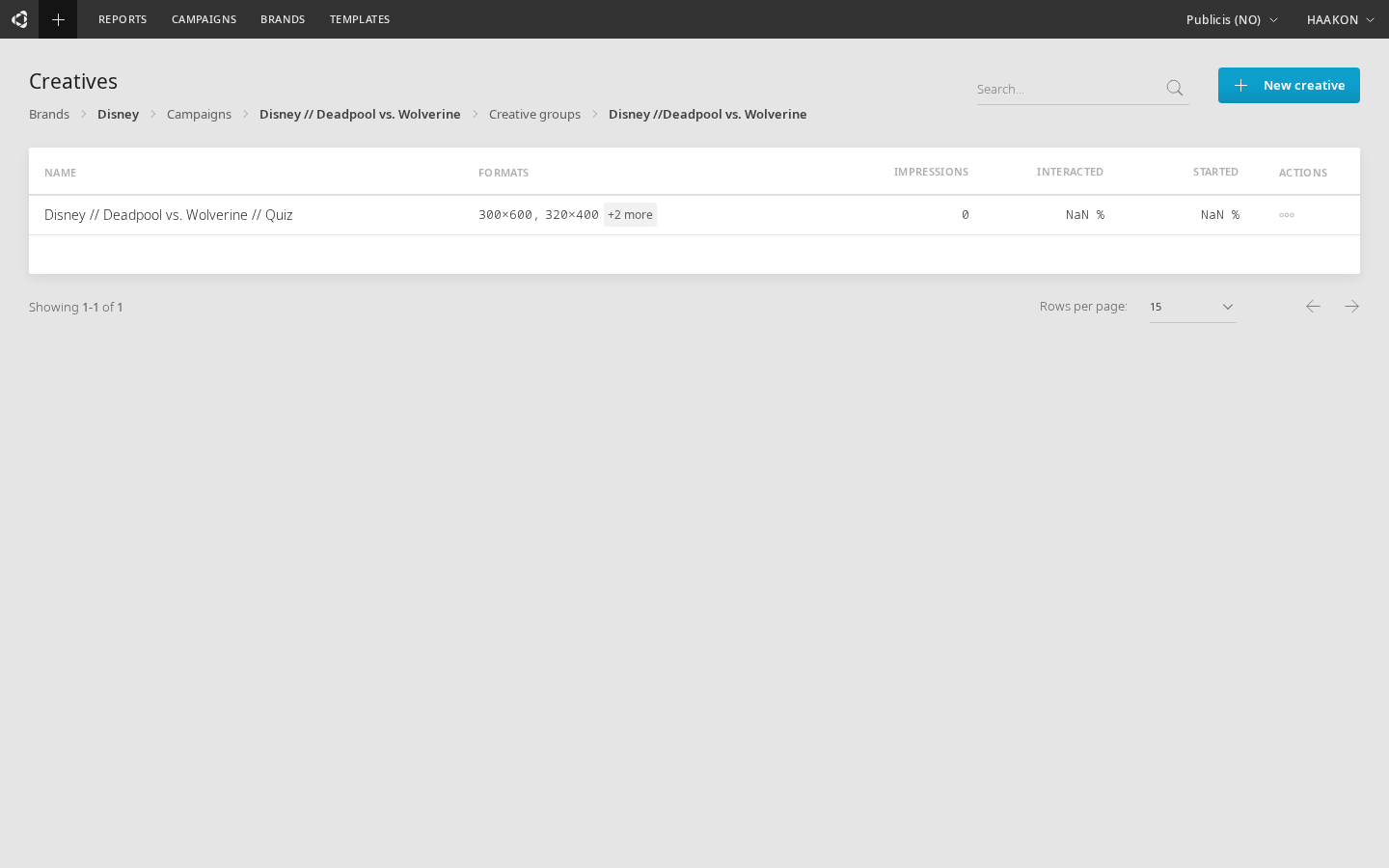
Table columns
| Column | Description |
|---|---|
| Name | Creative name (click to open in Builder) |
| Formats | The format(s) this creative is built for (e.g. Banner, Chatbox) |
| Impressions | Total ad impressions (click to open a report) |
| Interacted | Percentage of impressions that led to an interaction (click to open a report) |
| Started | Percentage of impressions that led to starting a conversation (click to open a report) |
| Actions | Opens the actions menu |
The table supports search by name, sorting, and pagination.
Creating a creative
Click New creative to open the Creative Wizard, which guides you through:
- Selecting a brand, campaign, and creative group (pre-filled if you navigated from a group)
- Choosing a format (Banner, Chatbox, etc.)
- Optionally starting from a template
After creation, you'll be taken directly into the Builder to design the creative.
Actions menu
Click the actions button on any creative row to access:
| Action | Description |
|---|---|
| Edit | Open the creative in Builder |
| Rename | Change the creative name |
| Clone | Duplicate the creative within the same creative group. You'll be prompted for a new name. |
| Delete | Soft-delete the creative |
Soft delete
Deleted creatives can be restored from the Trash.
Multi-format creatives
A creative can have child creatives — format variants of the same ad (e.g. a Banner version and a Chatbox version). The parent creative is shown in the table, with its child formats displayed in the Formats column. Each format links directly to that variant in the Builder.
Versioning
Creatives support version history. Each time a creative is saved, a version snapshot is created. You can:
- View the list of saved versions
- Restore a previous version (rollback)
- Delete old versions